Gear
eDPI: the only sensitivity number worth comparing, and how to move settings between mice
So you’re switching mice but want to carry your aim sensitivity with you? Completely understandable. The key, it turns out, is not to think about “DPI” and “in-game sensitivity” as separate settings.
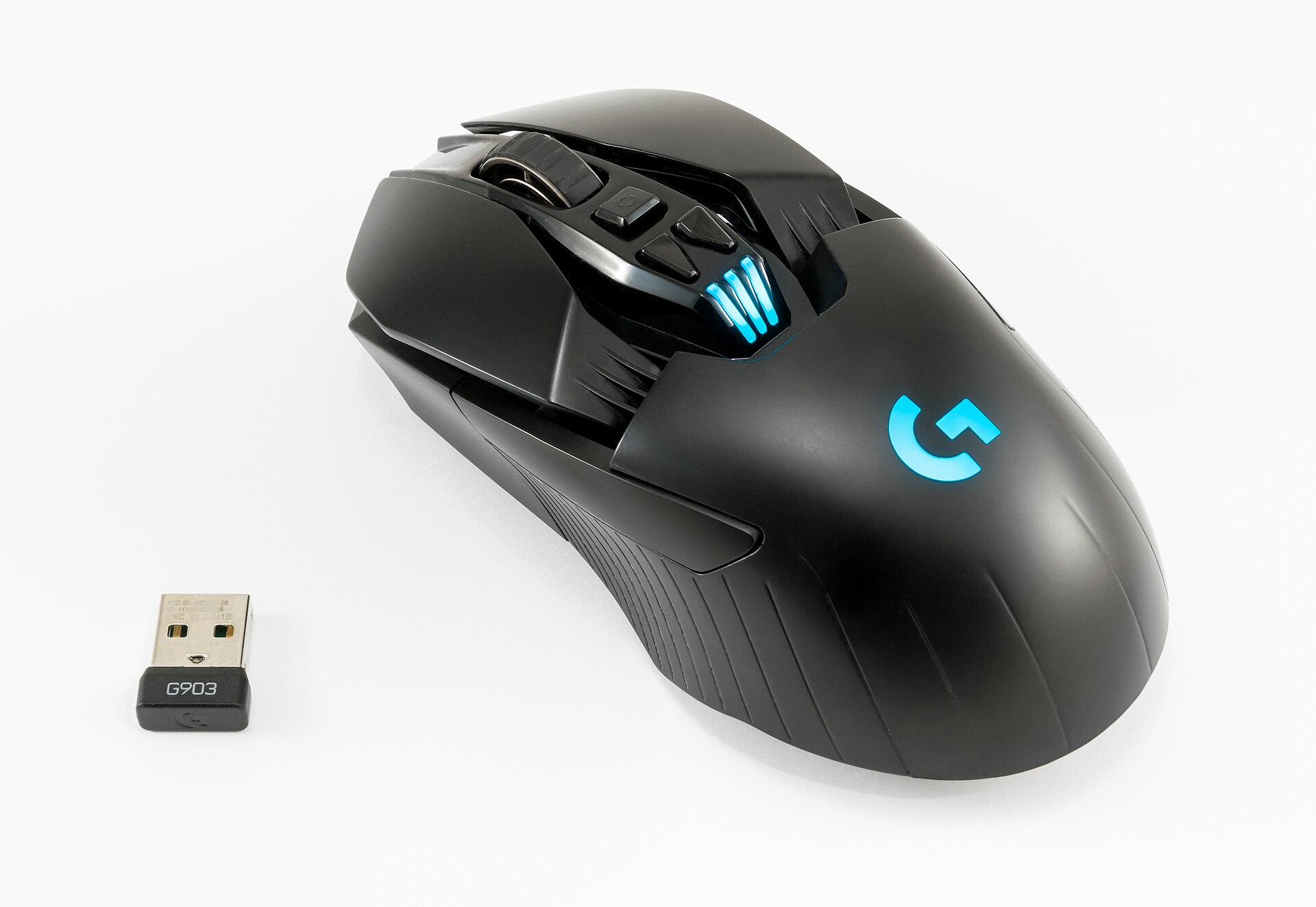
This article tells you what eDPI is, why it matters, and how to use it. The only way, really, to swap mice and directly get the same feel you had last time.
eDPI Defined
Underlying all sensitivity discussions is the raw mouse feedback: pixels moved, or cursor distance, as a function of physical distance moved by the mouse hardware. Mouse makers know this as “DPI” (dots per inch) or “CPI” (counts per inch), a measure of how responsive the mouse is to movement. Logitech describes sensitivity like this, sometimes equating it to DPI or CPI. What’s “sensitivity” in a game, then? The multiplier on your native DPI: the game sensitivity setting, AKA the game settings slider. Valve’s published default for Counter-Strike 2 is 1. Razer explains that sensitivity refers to the distance the cursor travels based on how far the mouse moves. The higher the DPI setting, the farther the cursor will go for the same physical mouse movement.
This is where “eDPI” comes in. Sensitivity is not the same setting as DPI, because it’s the knob. Valve exposes a CS2 setting for it. DPI means mouse hardware. The cliché that “sensitivity” describes both is just wrong. The sensitivity number in your game settings multiplied by your mouse hardware DPI gives your effective DPI (eDPI) — and that is what counts. Two mice with the same slider setting can feel different. Only by keeping eDPI consistent can you move to new hardware and retain the identical feel.
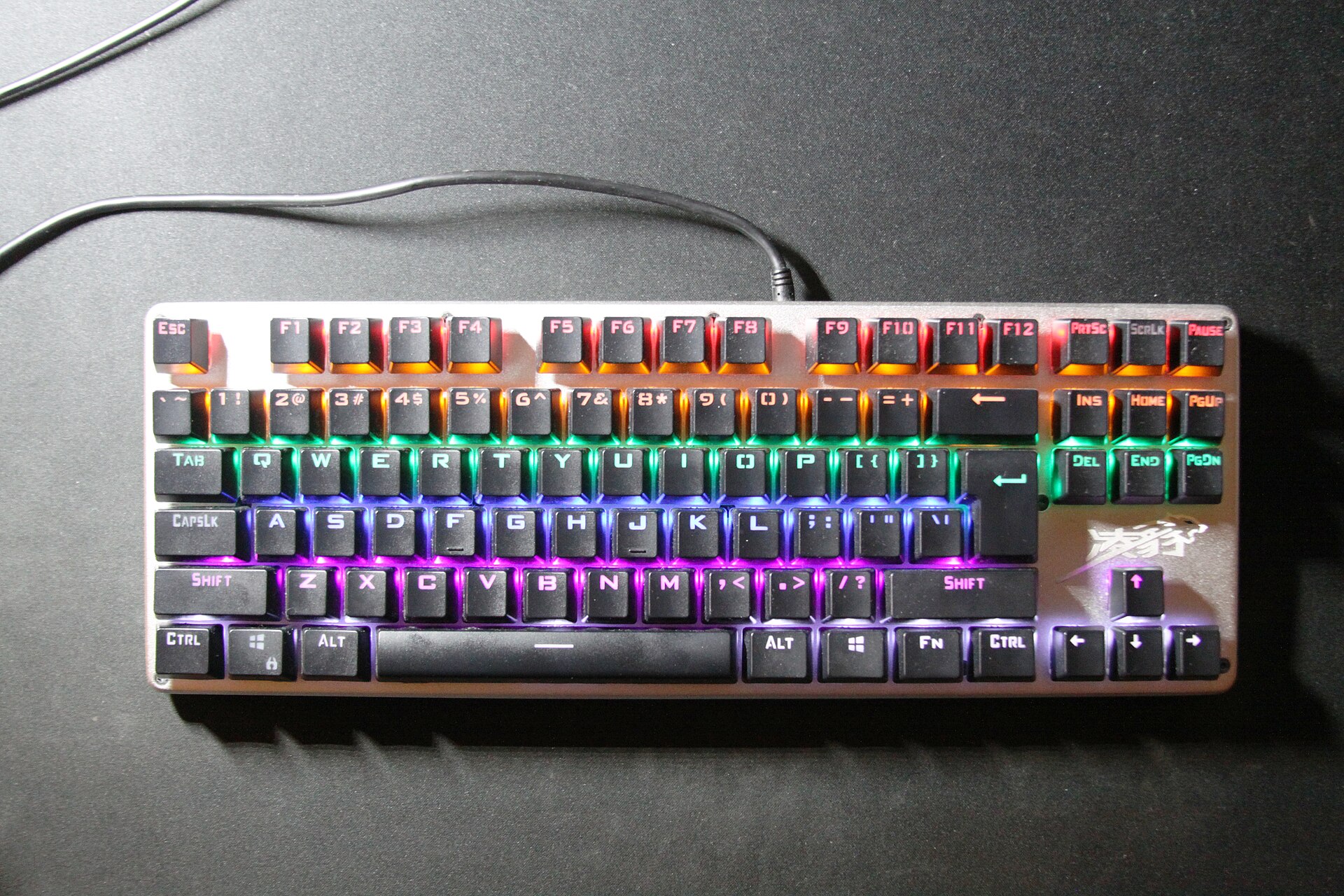
Achieving the Same eDPI
You carry your effective DPI from last time to this time by balancing a rise in one setting against a proportional drop in the other. Razer has a presets page with DPI stages, Logitech’s support site shows a G402 that can change DPI in 80-DPI steps, and Valve makes a slider for sensitivity in CS2. Here’s an example: you’re using a 400 DPI Razer and a 1.0 sensitivity in CS2.
` 400 DPI × 1 = 400 eDPI ` Suppose you moved to a 1600 DPI Logitech. To keep 400 eDPI there: ` 400 eDPI ÷ 1600 DPI ` You would reset your in-game sensitivity to 0.25. You can get this same result the other way: if you had maxed out your physical DPI, you would need a sensitivity multiplier smaller than 1. Say 16000 DPI. Then 400 ÷ 16000 is 0.025, so you would set CS2 to a sensitivity of 0.025.
The numbers sum up whatever way you work it: the eDPI that preserves your aim is exactly your original DPI times your original sensitivity.
Checking the New Setup
Even once the arithmetic agrees, the practical test is physical: how far the mouse has to travel for a full turn, measured against the distance your hand already expects. That is what "centimetres per 360" describes — the real-world sweep that produces a 360-degree turn.
The check is worth making, because two setups can share an eDPI without feeling identical. Mice advertise a list of DPI steps rather than a continuous range: Razer's support material gives 400, 800, 1600, 3200 and 6400 as example settings, with 16000 as the maximum, and Logitech's support site describes a G402 that moves in 80-DPI increments. So the eDPI you want may sit between two steps the new mouse offers, and the sensitivity slider is what closes the gap.
So treat the two numbers as doing two different jobs. eDPI is the figure you compare — between mice, between configs, between players. Centimetres per 360 is the figure you feel, and the one that tells you the transfer actually worked.
DPI and Desktop Pointer Speed
One last knob to leave alone. The "pointer speed" slider in your operating system's mouse settings is a separate control from the game's, and in-game sensitivity works from the mouse's own DPI rather than from it.
That has a practical consequence. Move from 800 DPI to 1600 DPI and halve your in-game sensitivity, and your view in the game turns exactly as it did before — but the cursor on your desktop now moves twice as fast, because nothing in the game touched the desktop setting. Turning the OS pointer speed down to compensate fixes the desktop and changes nothing in the game. The two live in separate worlds, and trying to balance one against the other is how people end up with a configuration they cannot reproduce.
Which is the whole method, really: work out the eDPI you already have, reproduce it on the new mouse, then walk a full turn and see whether your hand agrees.
Questions readers ask
What is eDPI?
Mouse DPI multiplied by in-game sensitivity. It is the only one of the three numbers that means the same thing on two different mice.
How do I keep the same aim on a new mouse?
Divide your old eDPI by the new mouse’s DPI. 400 DPI at sensitivity 1 is 400 eDPI; on a 1600 DPI mouse the same feel is sensitivity 0.25.
Does the Windows pointer speed affect aim in game?
No. In-game sensitivity works from the mouse’s own DPI and bypasses the desktop pointer setting entirely.
What is cm/360 for, if eDPI already matches?
It is the physical check: the distance the mouse actually travels for a full turn. eDPI is the number you compare, cm/360 is the thing your hand learns.
eDPI and cm/360
eDPI is DPI multiplied by sensitivity — the only number that makes two players comparable. Centimetres per 360° uses the standard Source yaw of 0.022° per count: 360 ÷ (0.022 × eDPI) counts, converted at 2.54 cm per inch.
Before you buy
- eDPIDPI times sensitivity. Hold it constant and the aim moves with you.
- PollingHigher rates cost CPU; on a frame-limited machine that is a bad trade.
- DisplayThe panel shows what it is given. Frames first, then refresh rate.
- AudioStereo resolves left/right and distance well, elevation badly.