Gear
240 Hz on 120 frames: what a high refresh monitor gives a machine that cannot feed it
A 240 Hz monitor only increases image clarity and reduces input lag compared with a 120 Hz panel at the same frame rate. It does not create extra in-game frames, which are only limited by your machine's GPU and CPU.
On this page
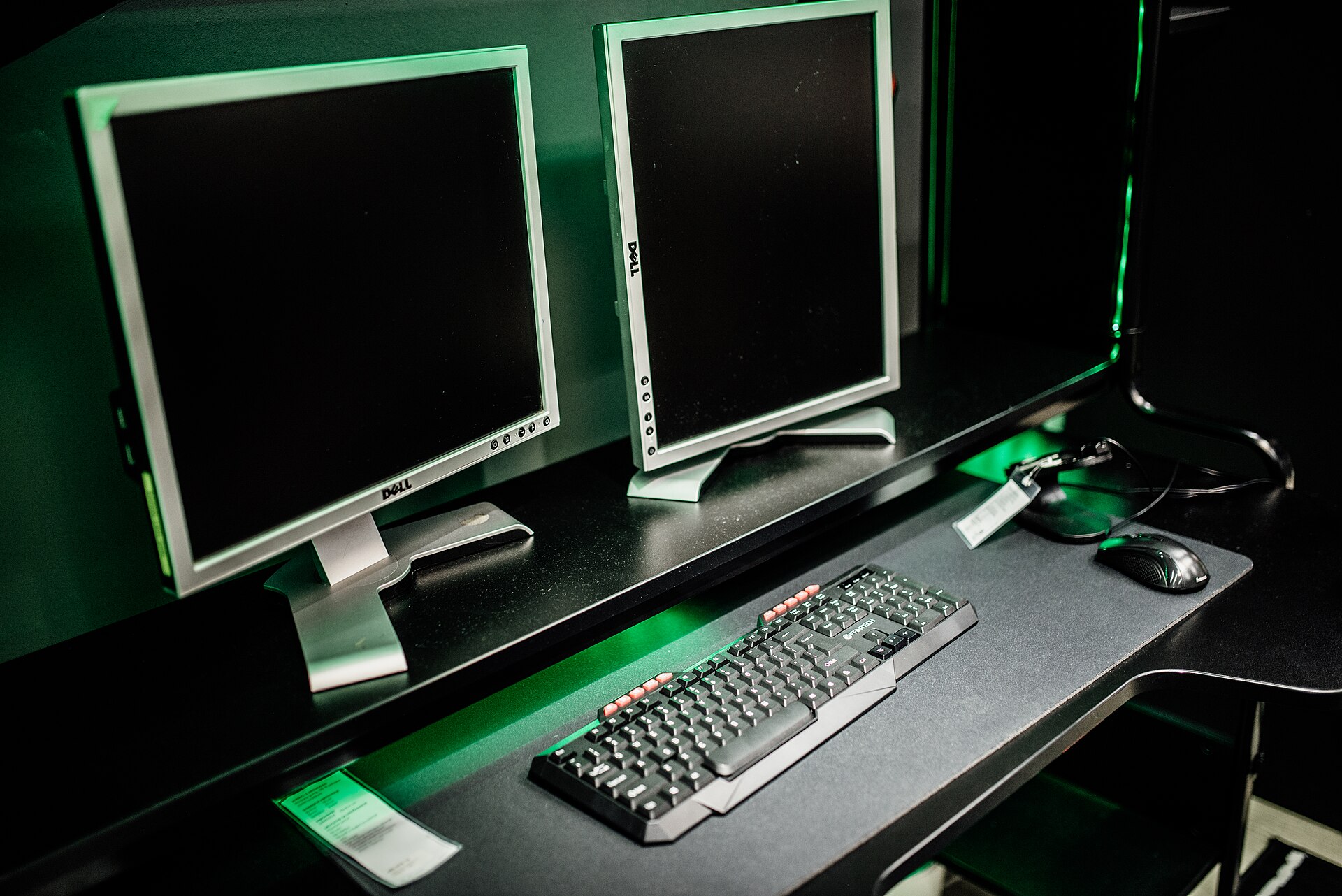
Understanding the difference between refresh rate and frames per second is key to making the right purchase decision.
Frames, Refresh, and What the Screen Can Actually Show
Refresh rate is the frequency at which a monitor updates the image, measured in hertz (Hz). Meanwhile, frame rate is the frequency at which the game engine or graphics card generates and renders frames. Frame rate is expressed in frames per second (fps).
Display refresh rate and frame rate are separate things. A 240 Hz monitor refreshes its image 240 times per second. But how many frames your actual game can push out to that monitor is entirely determined by your gaming system. If your machine can render 120 fps, that 120 fps is the most you will ever see, regardless of whether you're using a 120 Hz or 240 Hz monitor.
On a 240 Hz monitor, one of the monitor's tripled refresh intervals will come from the frame output, while the other two intervals will remain blank. If a 120 Hz monitor can't do it, your experience wouldn't change much.
The 240 Hz Benefits At 120 FPS
Even when your system maxes out at 120 fps, there can still be some advantages to using a faster 240 Hz monitor.
With a 120 Hz monitor, the display can only refresh 120 times per screen buffer update. But at 240 Hz, the synchronously doubled refresh rate enables reduction of visual persistence blur. High refresh rates can also lower time-to-display, meaning that each frame appears on the screen faster to the player's eyes. This has an especially noticeable impact on competitive shooter games, where timing is critical.
While a 240 Hz monitor can't generate more fps for you, it may give you a sharper image and make the screen more responsive to your movements. But the frame cap on your screen is still determined by your hardware, no matter how fast your monitor is.
Tearing, V-Sync, and the Usual Counter-Strike Advice
In professional Counter-Strike, uncapped frame rates are common. Playing above the screen's refresh rate is recommended. This is because it helps avoid screen tearing, a glitch that occurs when the frame rate is higher than the refresh rate. As soon as there's a mismatch, the screen won't draw the whole frame, resulting in effects that feel like seeing a second, ghost image.
The alternative is V-Sync, which forces the GPU to wait for the monitor to refresh. This prevents screen tearing, but at the cost of input lag and responsiveness. The extra frames over the monitor's refresh rate allow more flexibility in when the frame is drawn, minimizing this delay.
However, uncapped frame rates can become a problem when the GPU is struggling. The GPU may drop frames inconsistently, causing the image to stutter. Without proper sync, your experience may be full of flickering and ghosting.
What Variable Refresh Rate Changes
Variable Refresh Rate (VRR), also known as FreeSync or G-Sync, dynamically changes the monitor's refresh rate in real time based on your game's frame rate. While your GPU foots the frames, your monitor refresh rate syncs to your frame rate.
This eliminates stuttering and flickering but in a different way.
Even with VRR, your frame rate is still capped at 120 fps, based on your GPU. But with VRR, your 240 Hz monitor will pulse at 120 Hz during the frames. Without VRR, the monitor would just refresh 240 times in a second, leaving you with a blank screen for half the refreshes.
VRR allows the monitor to sync with the GPU, so the refresh rate follows the frame rate, keeping them in harmony and making sure you only see what's in the frame. The monitor refresh rate no longer exceeds the frame rate, so tearing is gone.
But again, the frame rate is still limited by your system. If you're still at 120 fps, you won't magically get a 240 fps experience. You're just getting a better visual experience without flicker or latency.
What to Buy First
For most PC gamers, a 240 Hz monitor is a nice upgrade to have, not a necessity. Before you spend on the screen, it's best to make sure that your system can feed the monitor. Because in the end, a 240 Hz monitor is only as good as the performance of your hardware.
If your GPU can't render more than 120 fps, you're not going to get a better experience at 240 Hz. Cranking up your refresh rate won't help if you're not generating the frames you need. The best purchase is the one that boosts your frame rate first, whether it's a faster GPU, more RAM, or a CPU that doesn't bottleneck.
Once you've upgraded your hardware to max out at 120 fps, only then should you think about getting a 240 Hz monitor. Because then, and only then, can you enjoy all the benefits of a 240 Hz screen.
Questions readers ask
Will a 240 Hz panel raise my frame rate?
No. Frames come from the CPU and GPU. A faster panel displays what the machine already renders; it cannot manufacture frames.
Is 240 Hz worth anything at 120 fps?
Something, but modestly: less persistence blur, and a shorter wait before a finished frame reaches the screen.
Why do professionals run uncapped frame rates?
Frames produced above the refresh rate shorten the wait before the next one is drawn. V-Sync removes tearing instead, but pays for it in input lag.
What does variable refresh rate change?
It makes the panel follow the frame rate rather than the reverse, which removes tearing without V-Sync’s added delay. The frame rate itself is still whatever the machine can render.
eDPI and cm/360
eDPI is DPI multiplied by sensitivity — the only number that makes two players comparable. Centimetres per 360° uses the standard Source yaw of 0.022° per count: 360 ÷ (0.022 × eDPI) counts, converted at 2.54 cm per inch.
Before you buy
- eDPIDPI times sensitivity. Hold it constant and the aim moves with you.
- PollingHigher rates cost CPU; on a frame-limited machine that is a bad trade.
- DisplayThe panel shows what it is given. Frames first, then refresh rate.
- AudioStereo resolves left/right and distance well, elevation badly.